

1. Run Proxmox post install script#
You can find it on the Proxmox VE Helper Scripts page. Just search for PVE Post Install.
Run it and…
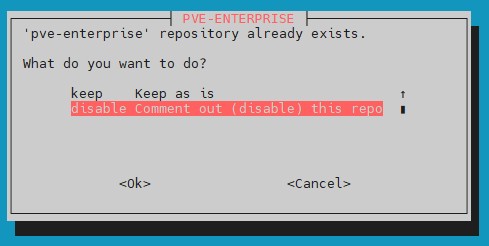
I do not want Enterprise subscription. I use the free tier.
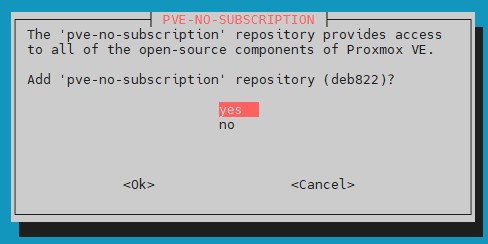
Therefore I want theno subscription repo.
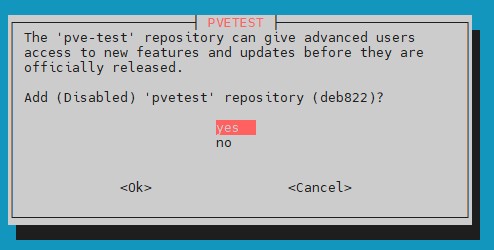
And the test repo does not hurt…
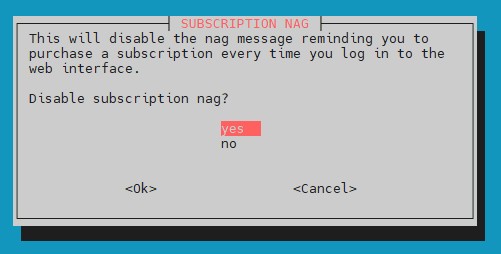
This is essentiall, because the nag gets really annoying.
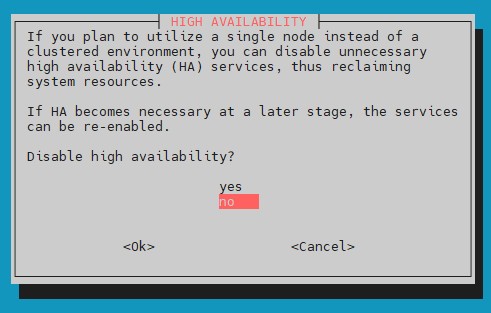
I run a cluster, so I choose yes.
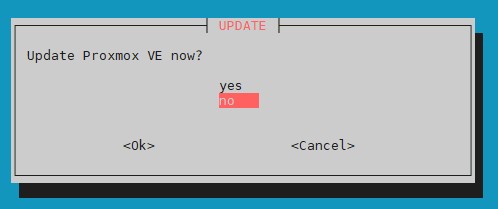
I update it later manually.
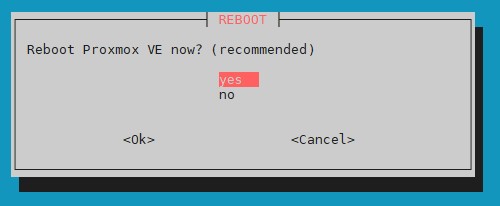
Yes, reboot and enable the configuration.
2. Update Proxmox#
apt update
pveupgrade
3. Add Tailscale#
I use Tailscale so I want my new Proxmox box to be in tha that specific Tailnet. If you want to know mor abaout Tailcale look here.
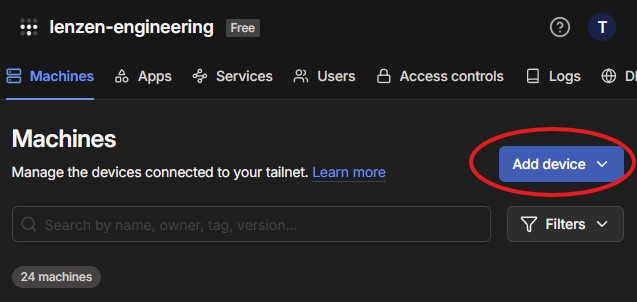
Go to your Tailscale dashbord and choose to add a new Linux device.
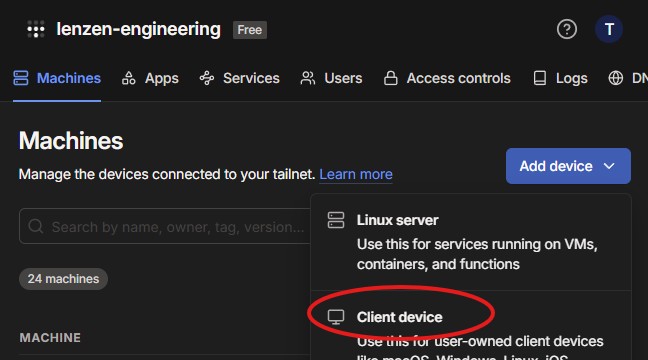
Select a new client device.
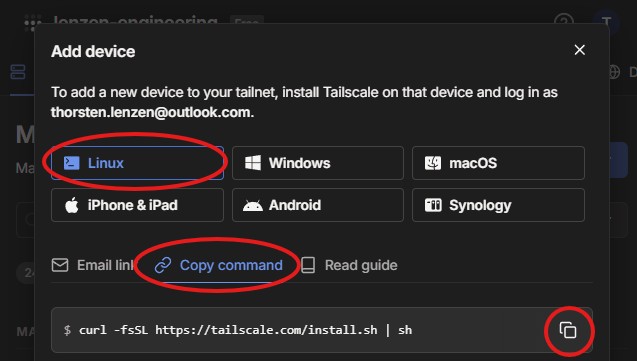
Select Linux and then cpopy the install command to the clipboard and execute in on the Proxmox box.
Now you fire up up Tailscale. I do it with the --ssh option, so I can use the Tailscale token to log on to my machines.
tailscale up --ssh
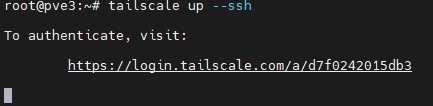
Take the link displayed and put it in browser.
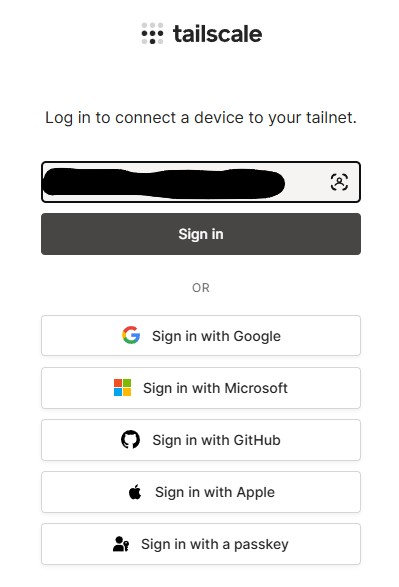
I like to log in with my MS Identity Provider.
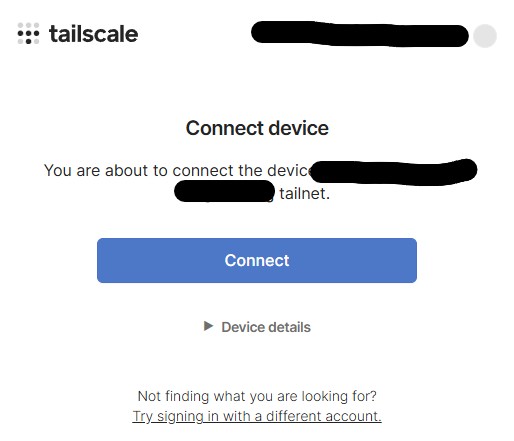
Click Connect.

By clicking on tne three dots ... you can p aapprove the changes ( if you don’t have auto approve). Hint: I change the IPV4 address, to one more convenient for me.
Now you can log in to your new box via tailscale DNS over the Tailscale Identity Provider.
shh root@pve34. Secure with Tailscale#
We are securing the machine with a self singed certificate from Tailscale (Let’s encrypt) and and reverse proxy to put that certifiacte to use.
I have already written a blog post about that and can finf it here.
5. Add new Proxmox node to cluster#
Since I am running a cluster I will join my nes Proxmox node to the cluster.
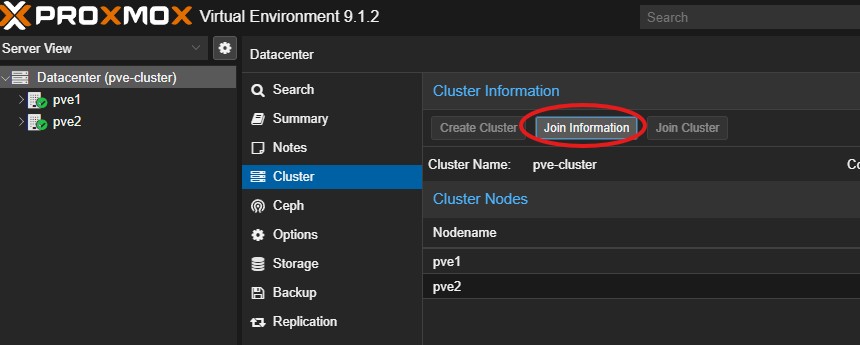
In my cluster, I navigate to Datacenter -> Cluster and choose Join Information
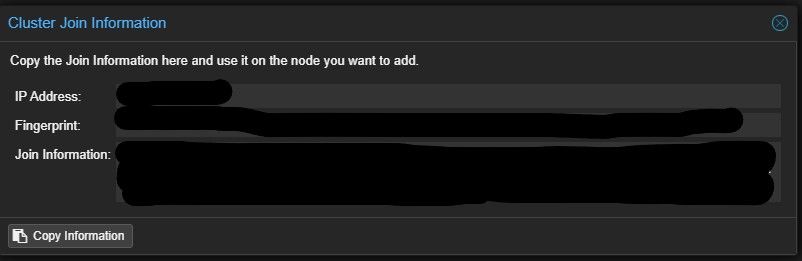
There I copy the join Information.
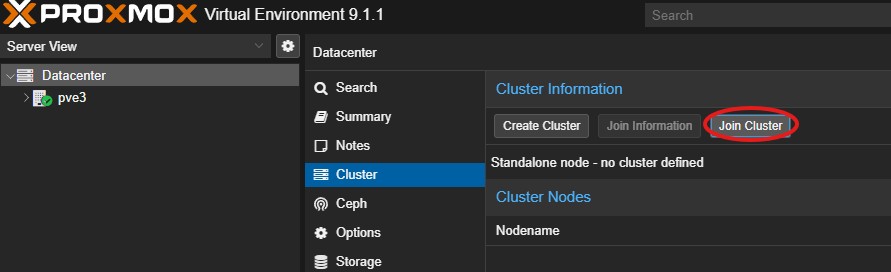
Now you open the new nodes web gui and navagite to Datacenter -> Cluster and choose Join Cluster.
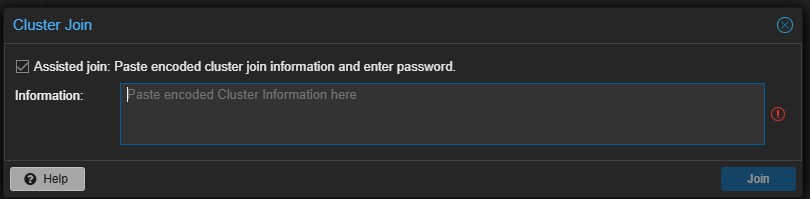
Paste the Join Information from above.
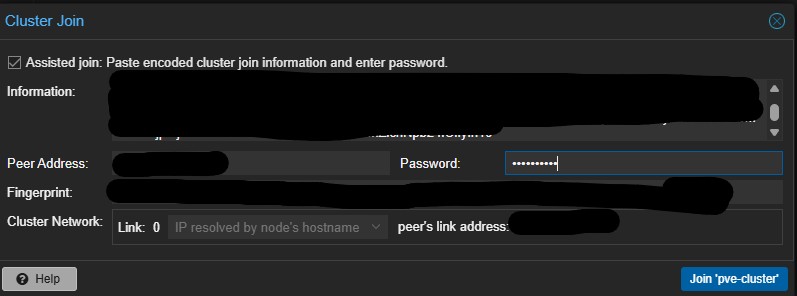
Add the Clusters password and join.
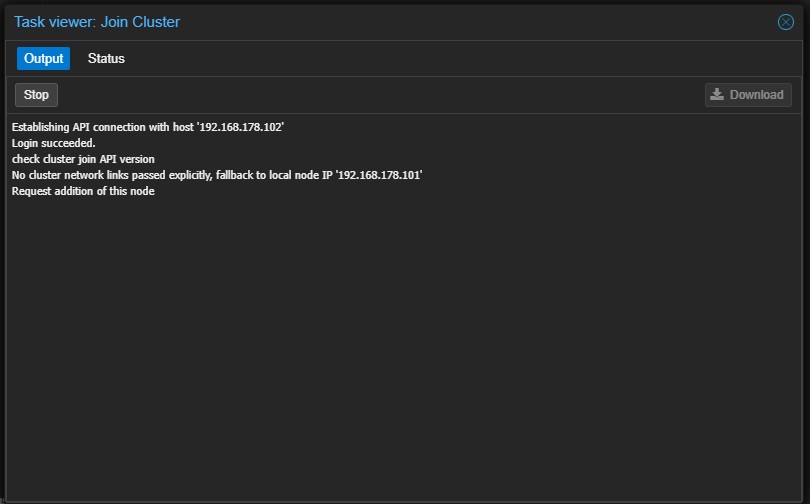
Hint: There might be some error messages. but you can ignore them, just reloed you clusters web gui.
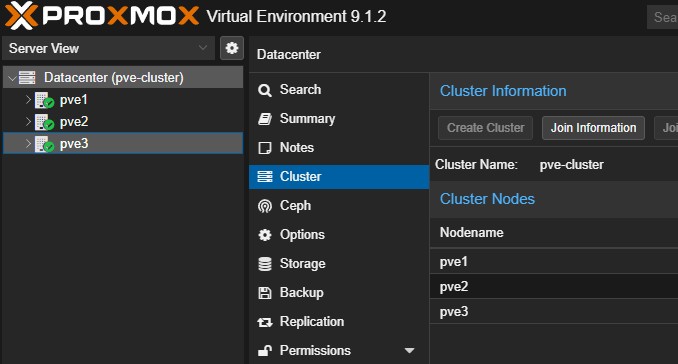
Now you can (hopefully) see the new node has been added.