

Add a new drive to the Proxmox host and then bind a folder on it to the VM.
1. Find the disk on the Proxmox Host#
lsblk
lsblk -f   # includes filesystem type, label, UUID
when using lsblk in the case below you can see two physical drives, taht are not yet bound to the proxmox host system pve3.
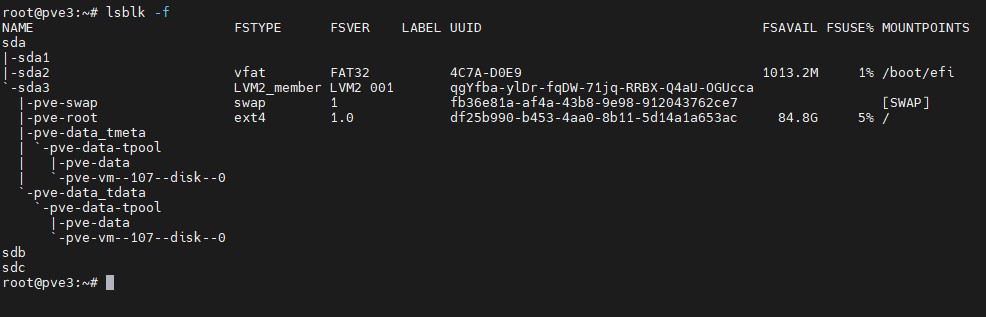
We will now use drive sdb.
2. Partition it#
sudo fdisk /dev/sdbInside fdisk:
g    → create new GPT partition table
n    → new partition (accept all defaults for one big partition)
w    → write and exit
Or use parted for scripting:
sudo parted /dev/sdb --script mklabel gpt mkpart primary 0% 100%3. Format it — filesystem choice#
For Proxmox data storage, the best options are:
| Filesystem | Best for | Pros | Cons |
|---|---|---|---|
| ext4 | General use, VM images | Simple, stable, fast | No snapshots |
| XFS | Large files, backups | Great for big files, fast | Harder to shrink |
| ZFS | Everything if RAM allows | Snapshots, checksums, RAID | Needs 8GB+ RAM |
| LVM-thin | VM/CT disks | Proxmox-native, snapshots | More complex |
Recommendation:
- Storing VM disks / ISO / backups → ZFS (if you have ≥8GB RAM) or ext4 for simplicity
- Just a data/backup drive → XFS or ext4
Format with ext4:
sudo mkfs.ext4 /dev/sdb1Format with XFS:
sudo mkfs.xfs /dev/sdb14. Mount it & make permanent#
# Create mount point
sudo mkdir -p /mnt/data

# Get UUID
sudo blkid /dev/sdb1

# Add to fstab (replace UUID with yours)
echo 'UUID=xxxx-xxxx  /mnt/data  ext4  defaults  0  2' | sudo tee -a /etc/fstab

# Mount
sudo mount -a

# Verify
df -h /mnt/data
5. Add folder on host to a VM using VirtioFS#
Create a folder you want to map on your proxmox host.
Navigate to Datacenter -> Directory Mappings Mappings in Proxmox web gui. Now add a new mapping.
Now navigate to Your VM -> Hardware. There add a new VirtioFS device and map it to your directory mapping from above.
Reboot the VM to apply the changes.
SSH into your VM and mount the Virtual Disk into your VM.
To make the VirtioFS mount permanent, add it to /etc/fstab inside the VM:
sudo nano /etc/fstaband insert at the end
hostshare /mnt/ata virtiofs defaults 0 0Make sure the mount point exists:
mkdir -p /mnt/dataTest it without rebooting:
mount -aNote: hostshare must match the tag name you gave the virtiofs share in the Proxmox VM hardware config. If you named it differently there, use that name instead.
My recommendation for Proxmox#
Since I use it purely for VM storage and backups, go with ext4 for simplicity, or invest in ZFS if you want snapshots and data integrity. XFS is a solid middle ground for backup storage with large files.